
Last month we moved from Bluehost to HostGator. But I didn’t write or mention anywhere in the recent posts at DailyBlogging. The reason behind this was at that time I was designing our Theme.
So I didn’t want to divert my attention towards other things. Coming to the main point, the reason why we moved from Bluehost to HostGator was because we had exceeded the file count limit in Bluehost.
So to avoid Suspension of the account, it was necessary for us to move to another reliable service; and which host could be more reliable than HostGator.
Yes, HostGator is a touch costly as compared to most of the Hosting companies. But we had utilized the 80% Discount on Black Friday to buy ourselves the Business plan of HostGator for 3 years.
After the transfer, some of my Facebook friends wanted to know HowTo Transfer a WordPress Blog from one host to another. That’s the reason I decided to write a separate article to help them out. Let me directly come to the steps I followed during this transfer.
1. Backup Everything (Databases + Directory files)
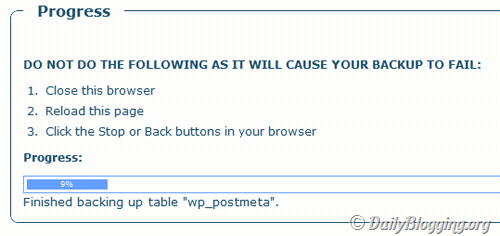
The first and foremost thing you must do while moving your WordPress blog is to backup the Databases and the Directory files. This is a precautious step which needs to be taken under any condition.
For Database Backups I use ‘WordPress Database Backup’ which helps to not only schedule backups & sends it via Email but also it generates backups which can be directly downloaded. If you’ve lost your Database, then you can use the older version of the database which you’ve.
For this you should be having WordPress Database Backup (WP-DB-Backup) or any other DB Backup plugin installed & scheduled to send emails containing databases.
2. Fresh Install WordPress on your New Server/Host
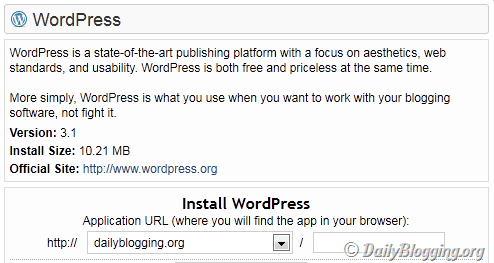
Once you have the database & directory backups, you need to fresh install WordPress on your New Host. Make sure that you’ve changed the Name servers and made it to point towards the new Host. Allow some minutes for the Nameservers to get updated.
After you’ve done that, install WordPress. CPanel comes with many add-ons which installs WordPress with a few clicks. In HostGator you’ve Quick Install exclusively for installing WordPress. The latest of which is the WordPress 3.1, which was released late yesterday.
3. Replacing the Database
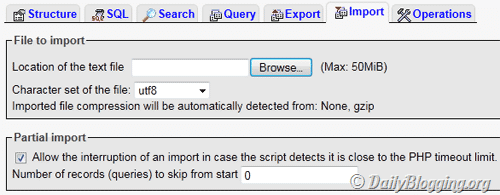
Once you’ve freshly Installed WordPress on your new host, you’ll find a default Database created in phpMyAdmin. Open that Database. Go to the Import tab & Upload the Database which you’ve backed up as per Step-1.
You’ll be prompted to Replace the Database tables, Click ok when that popup comes & you’ll have the result.
4. Restoring the Directory files
You don’t need to replace all the directory files. Just replace the wp-content folder with the one you backed up, again as per Step-1. With this you’ll have your themes & plugins in place.
The good thing is you won’t be needing to Configure the Plugins again as the settings are already saved in the database tables. That’s why it’s always a good practice to Replace the Database first and then the directory files.
Have you faced problems while moving your WordPress blog from one host to another host ??