.
Home » HowTo » How To replace Rs. with the new Rupee Symbol in Microsoft Word

How To replace Rs. with the new Rupee Symbol in Microsoft Word

by on July 20, 2010 · 27 comments

As I had mentioned in this post (Foradian Technologies reveals the 2.0 version of Rupee Foradian) that I would be posting an HowTo post soon enough on DailyBlogging. So today I will show you how to replace the normal Rs. which is normally used to show that the amount is in INR (Indian Rupee) with the new Rupee Symbol. It’s a pretty basic tutorial so you don’t need any advanced knowledge of Microsoft Word or Office.

Microsoft Word

Rupee Symbol in Microsoft Word

Five Simple Steps to Replace Rs. with the Rupee Symbol in Word

  1. Open Word, Type the Grave Ascent Symbol (`) using the Rupee Foradian font
  2. Select it and Goto Tools > Auto Correct
  3. Select the Auto Correct Tab
  4. Make sure there is a Grave Ascent Symbol (`) in the With box
  5. In the Replace box type Rs.

# Check out the image below if you have any doubt.
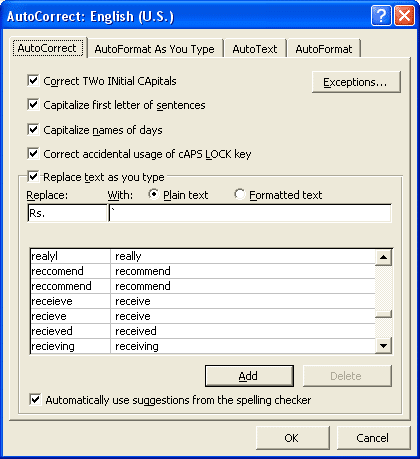
new rupee symbol

Replace Rs. to Rupee Symbol in Microsoft Word

Note:– This will only work when you select the Rupee Foradian font in the future documents wherein you want to replace Rs. with the rupee symbol.

Hope you liked the tutorial. I would like to hear what you think about this tutorial. 

Share & Save
Subscribe to DailyBlogging

Article by Mani Viswanathan

I'm a Web Designer/Developer, SEO'er and a Blogger who gives a few Blogging Tips in the form of posts/tutorials. Follow & Subscribe to my Blog if you feel it's worth it.

Mani has written 208 article(s) for DailyBlogging

Find Me On :-

Facebook : @mani0993

Twitter : @mani0993

{ 23 comments… read them below or add one }

1 physical therapist July 25, 2010 at 2:16 am

My cousin recommended this blog and she was totally right keep up the fantastic work!

Reply

2 Mani Viswanathan
Twitter:
July 26, 2010 at 2:19 am

Thanks for your appreciation & for ur cousin who recommended you! Have a nice stay here!

Reply

3 pharmacy technician jobs July 26, 2010 at 3:40 am

Great information! I’ve been looking for something like this for a while now. Thanks!

Reply

4 filmy erotyczne July 26, 2010 at 3:11 pm

great site and your writing style is amazing. just found your site on the web. l’ll come back later for sure!

Reply

5 Mani Viswanathan
Twitter:
July 29, 2010 at 12:17 am

Thanks for the appreciation erotyczne..Do comeback for sure!

Reply

6 doublegee
Twitter:
July 28, 2010 at 9:55 am

it was very interesting to read http://www.dailyblogging.org
I want to quote your post in my blog. It can?
And you et an account on Twitter?

Reply

7 Mani Viswanathan
Twitter:
July 28, 2010 at 11:39 pm

yep sure you can but make sure you provide a valid backlink to the post you quote in your blog.

My Twitter Handle : @tospost

Reply

8 Sai Pranay Chander July 31, 2010 at 9:40 am

Thank you very much it was very usefull.

Reply

9 Mani Viswanathan
Twitter:
July 31, 2010 at 5:30 pm

Thanks for the appreciation Sai

Reply

10 Wordpress Themes August 10, 2010 at 1:44 am

Nice brief and this mail helped me alot in my college assignement. Thank you for your information.

Reply

11 goncharovaya
Twitter:
August 14, 2010 at 9:56 am

I would like to exchange links with your site http://www.dailyblogging.org
Is this possible?

Reply

12 Mani Viswanathan
Twitter:
August 15, 2010 at 3:41 pm

Well, give your blog/site address using our Contact form.

Reply

13 vivek Netan November 1, 2010 at 5:31 pm

Nice tutorial but there is a problem with Rupee Foradian Font. Whenever we need to insert new rupee symbol we have to choose Rupee Foradain Font.

So there is a nice and handy solution for it from my side.
1. Click on Insert—symbol->more symbol
2. Now symbol Font and in the fonts search for Rupee Fordian Font
3. In Subset choose Basic Latin
4. In the preview of symbols choose the rupee ` Symbol and click on Shortcut keys
5. In the shortcut keys assign any shortcut keys for the rupee ` symbol
Now when ever you want to insert the rupee symbol ` you need not to select Rupee foradian Font. Just press the assigned keys

Reply

14 manju December 9, 2010 at 3:18 pm

thanks for this

Reply

15 jinan August 27, 2011 at 7:09 pm

sorry i am unable to do this
can u explain it in detail
i am not geting tools option in microsoft word

Reply

16 viveknetan September 15, 2011 at 6:11 pm

So there is a nice and handy solution for it from my side.
1. Click on Insert—symbol->more symbol
2. Now symbol Font and in the fonts search for Rupee Fordian Font
3. In Subset choose Basic Latin
4. In the preview of symbols choose the rupee ` Symbol and click on Shortcut keys
5. In the shortcut keys assign any shortcut keys for the rupee ` symbol
Now when ever you want to insert the rupee symbol ` you need not to select Rupee foradian Font. Just press the assigned keys

to download full procedure with snap shots , download the file simple method to insert rupee symbol from my sky drive link. this link is public you need not to loging

https://skydrive.live.com/?cid=7190c15b49f531d6&id=7190C15B49F531D6!145

Reply

17 Osama September 18, 2011 at 11:42 pm

Thanks or i’ve buyed a new Keyboard……………

Reply

18 Lalit@Samsung Tablet
Twitter:
October 1, 2011 at 12:27 pm

This is a great information and every official documents should contain the symbol instead of Rs and therefore it is much useful. Thanks for sharing the information.

Reply

19 Niharika Panda
Twitter:
October 11, 2011 at 1:50 pm

I purchased a HCL desktop (i5 Processor) recently. The keyboard contains a specific keys containing rupees symbol . I want to know how to use it. Is it possible to print the symbol without downloading the concern font for rupee.

Reply

20 Mani Viswanathan
Twitter:
October 11, 2011 at 7:19 pm

Well if your Keyboard has the Rupee Symbol then you can use it locally. But since the Rupee Symbol is under universal web approval it will take some time. So if you are using it in Word then I don’t think you need to.

Reply

21 Sutanu November 7, 2011 at 11:34 am

If you highlight the Rupee symbol before carrying out the Auto correct process as explained by Mani, then even if you do not choose Rupee Foradian font, when you type Rs. you will get the official rupee symbol. Works like a dream. Saves the hassle of choosing RF font every where the symbol needs to be inserted. Only problem though the use who does not have RF font, we see only the accent mark. So let’s popularize the RF font amongst friends and colleagues

Reply

22 RachellGrace December 23, 2011 at 8:35 am

SO useful. thank.

Reply

23 abhiz January 11, 2012 at 7:50 am

Hello daily blogging. Thank you very much for this share! most helpful for all Indians

Reply

Leave a Comment

Use your real name in the 'Name' field. Comments found with only Keyword-filled Names will be trashed.

{ 4 trackbacks }

Previous post:

Next post: